Audit Logs Management
The Audit Logs module provides a comprehensive record of system activities, user operations, and data modifications. It is essential for security auditing, troubleshooting, and compliance tracking, allowing administrators to monitor who did what and when within the platform.
SPS Customizations
Below are the specific workflows and functionalities built into the Audit Logs module. The module is divided into multiple tabs for different logging contexts.
1. Operation Logs
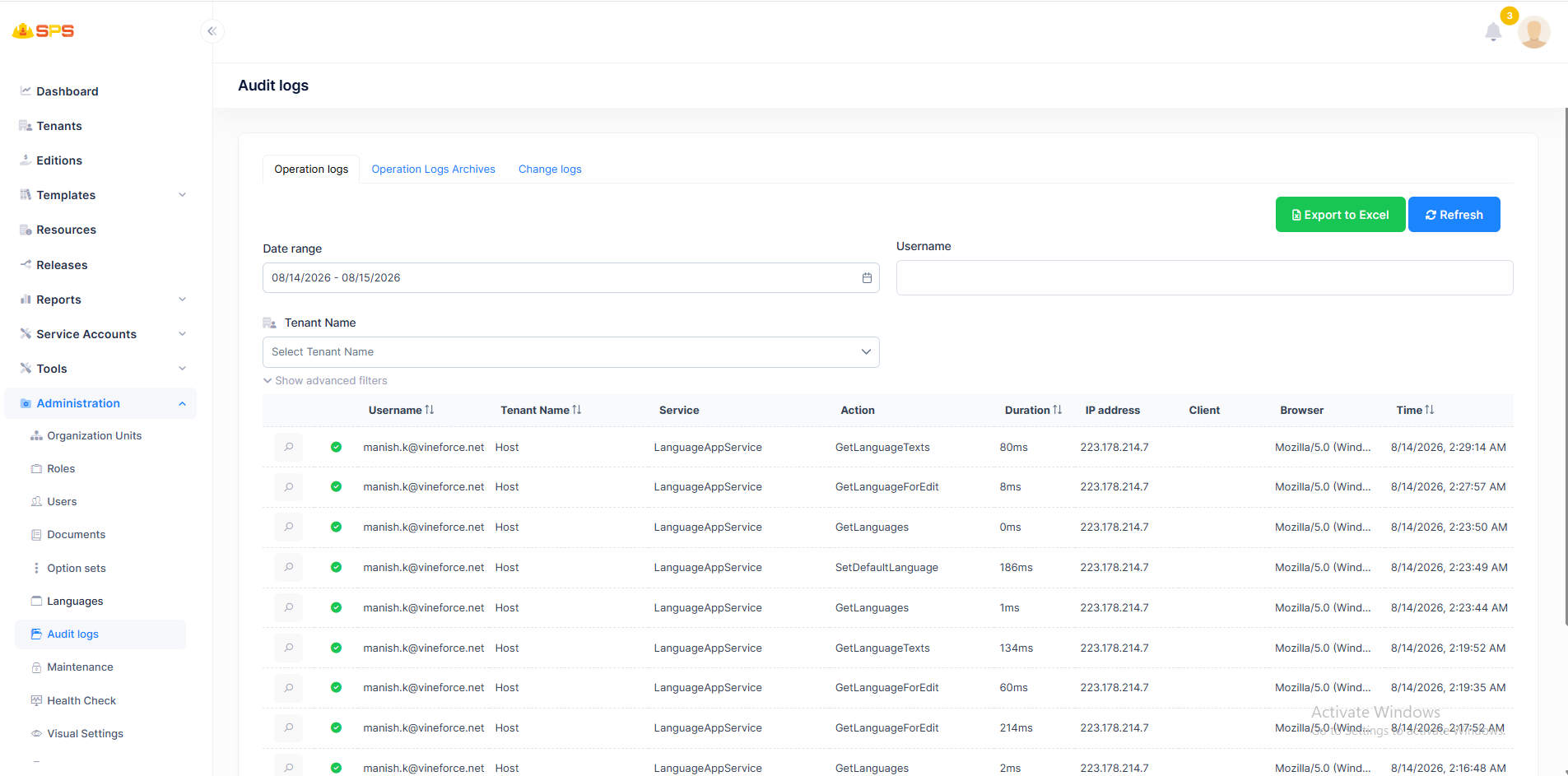
The Operation logs tab displays a detailed history of API calls and system actions:
- Filters:
Date range: To narrow down logs to a specific time period.Username: To search for actions performed by a specific user.Tenant Name: To filter logs by a specific tenant (in multi-tenant environments).Show advanced filters: Expands to show more granular search options (like Service or Method).
- Operation Logs List: A data table displaying each operation with details such as:
Status(Success/Failure icon)UsernameandTenant NameServiceandAction(The backend service and method invoked)Duration(Execution time in milliseconds)IP address,Client, andBrowser(Network and device details)Time(When the action occurred)
- View Details: Clicking the magnifying glass icon on any row typically opens a modal with the full JSON request/response and exception details if the operation failed.
- Export to Excel: A button to download the current log view into a spreadsheet.
2. Operation Logs Archives
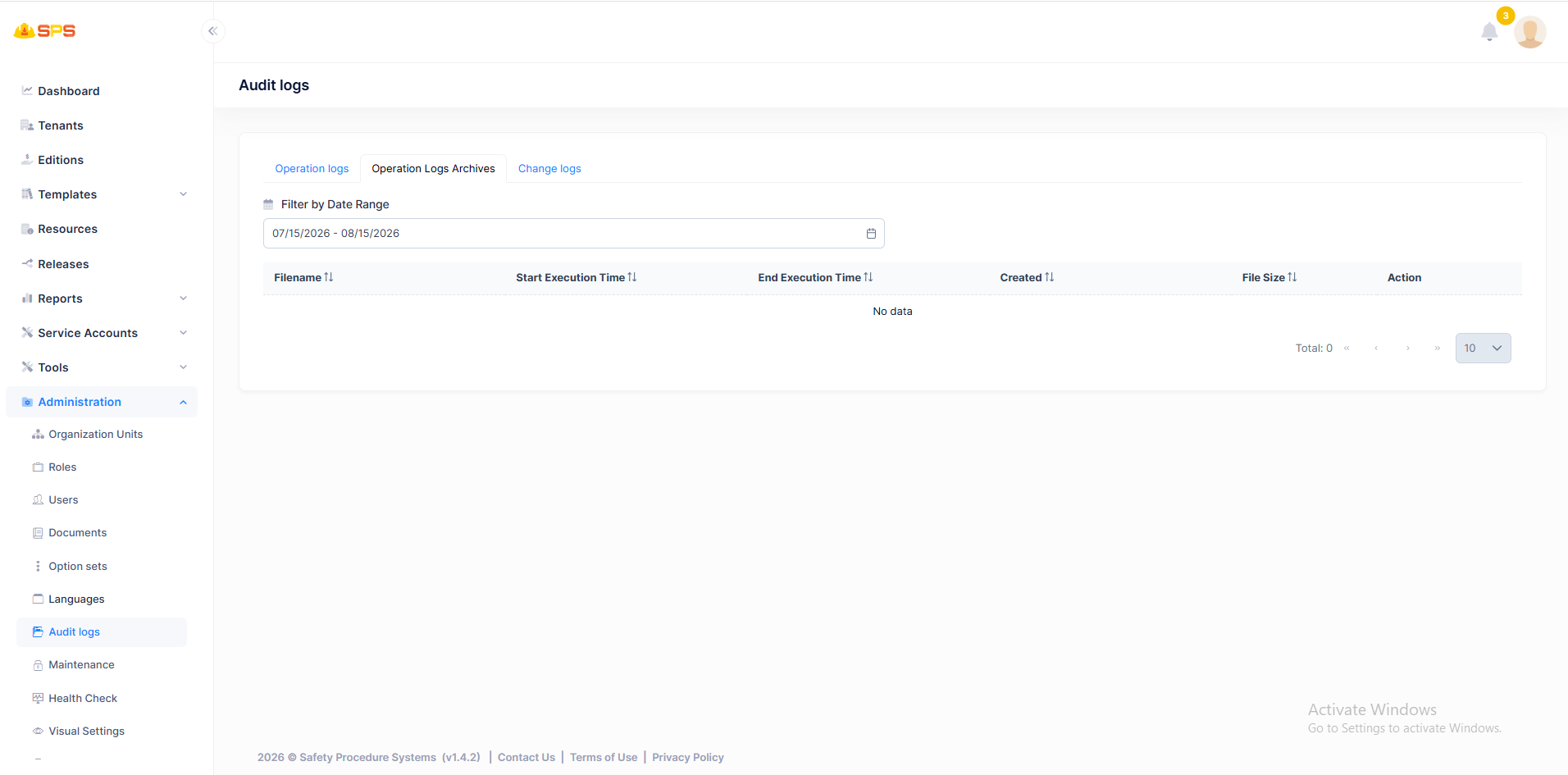
For long-term storage and performance management, older logs can be archived.
- Filter by Date Range: Allows administrators to find specific archive files based on when they were generated.
- Archives List: Displays a list of archived log files with details such as
Filename,Start/End Execution Time,Createddate, andFile Size. - Action: Typically provides options to download the archived log file (e.g., as a
.zipor.csv).
3. Change Logs
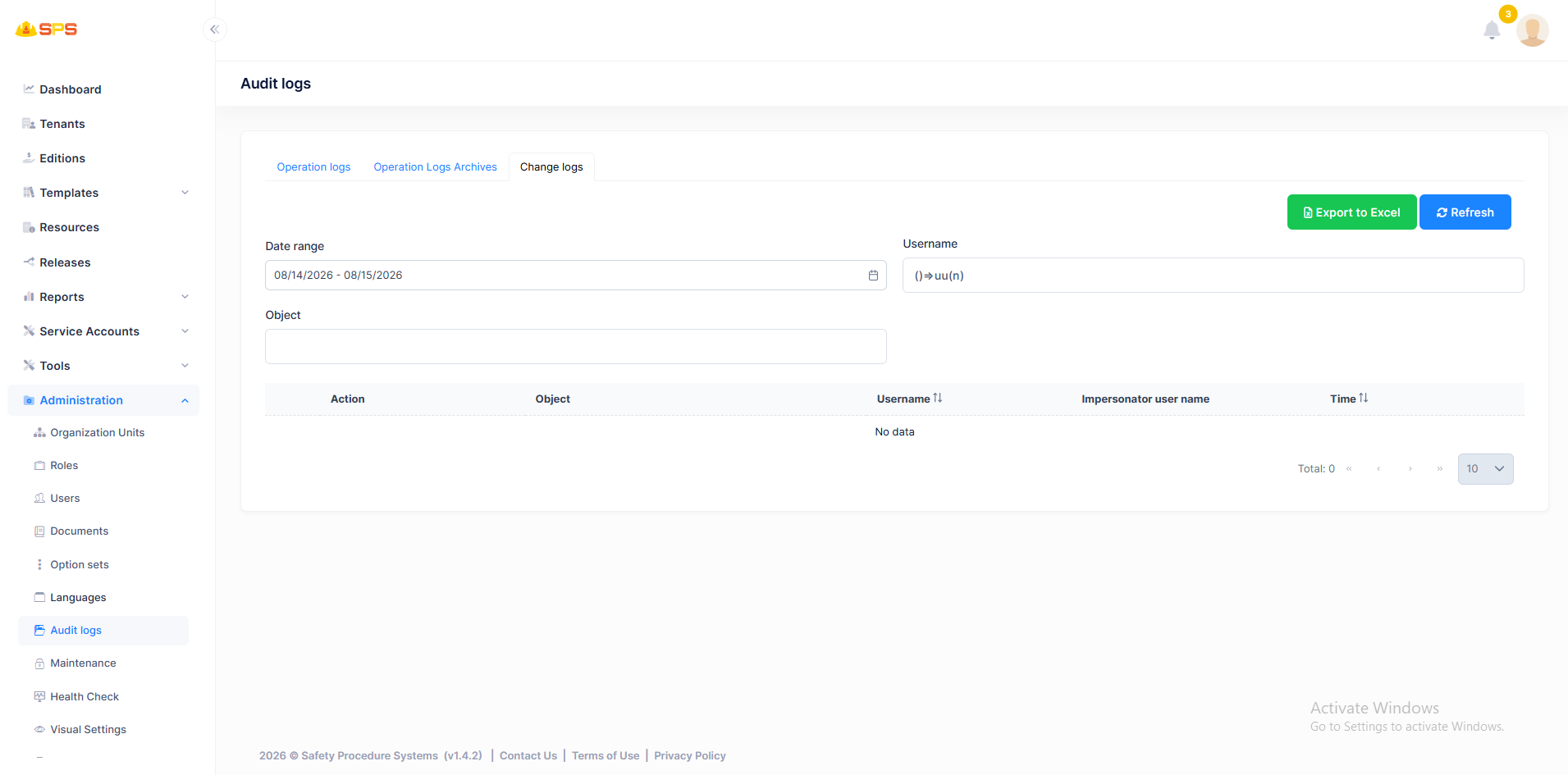
The Change logs tab specifically tracks modifications to data entities. It records the state of an entity before and after an update, allowing administrators to see exactly what properties were changed, by whom, and when (Entity History).
- Filters:
Date range: To narrow down modifications to a specific time frame.Username: To search for data changes made by a specific user.Object: To filter logs by the specific type of entity that was modified (e.g., searching for changes made to a specific document or user record).
- Change Logs List: A data table displaying each modification with details such as:
Action(e.g., Created, Updated, Deleted)Object(The entity that was changed)Username(The user who made the change)Impersonator user name(If the action was performed while impersonating another user)Time(When the change occurred)
- Export to Excel: A button to download the change history into a spreadsheet.
Developer Reference
Core Backend Components
- Entities: Driven by audit logging entities (such as
AuditLogandEntityChange) that store the raw execution data and entity property modifications. - Application Services: Services that query these logs for the UI and handle the asynchronous archiving process. The framework typically intercepts requests automatically to populate these logs without requiring explicit logging code in every application service.