Languages Management
The Languages module allows administrators to manage the user interface languages available within the application. It provides functionalities to add new languages, set defaults, and manage localization terms and phrases.
SPS Customizations
Below are the specific workflows and functionalities built into the Languages module.
1. Languages Interface
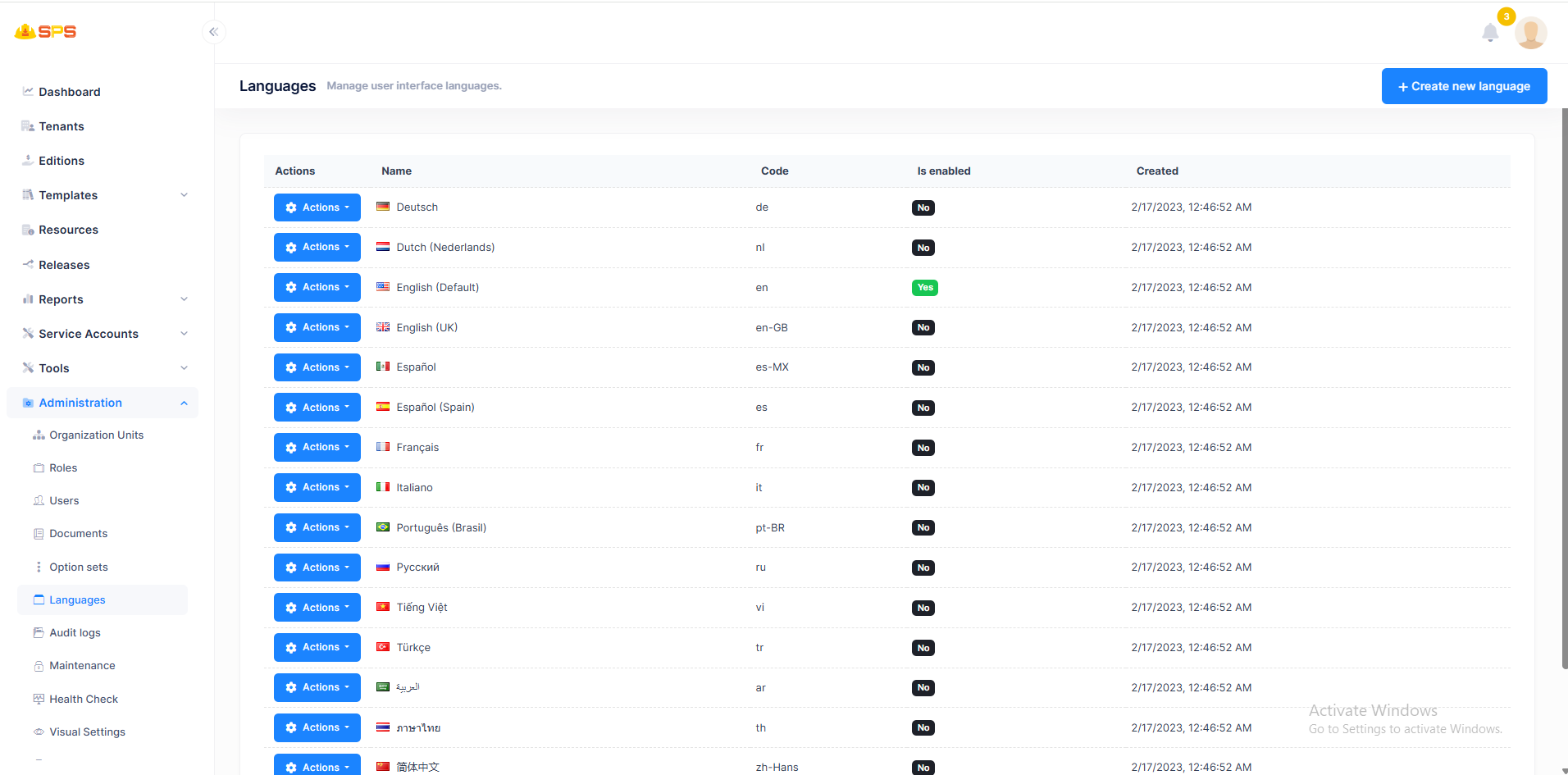
The primary view displays a list of all configured languages in the system:
- Languages List: A table displaying languages with details such as
Name(with flag),Code,Is enabledstatus, andCreateddate. The default language is typically highlighted or indicated (e.g.,Yesin green for Is enabled, or marked as default). - Actions Menu: Allows managing individual languages. The available options are:
- Edit: Opens a dialog to modify the language's properties (such as enabling/disabling it or changing the display name).
- Manage Localization Terms and Phrases: Opens a dedicated interface to view, search, and edit the translations for specific terms and UI texts in the selected language.
- Set as default language: Marks the selected language as the primary fallback language for the application and users.
- Delete: Removes the language configuration from the system (typically blocked for the default language).
- Create New Language: A primary action button (
+ Create new language) to add a new language configuration to the system.
2. Creating or Editing a Language
When creating or editing a language, administrators use a dialog to select the language properties:
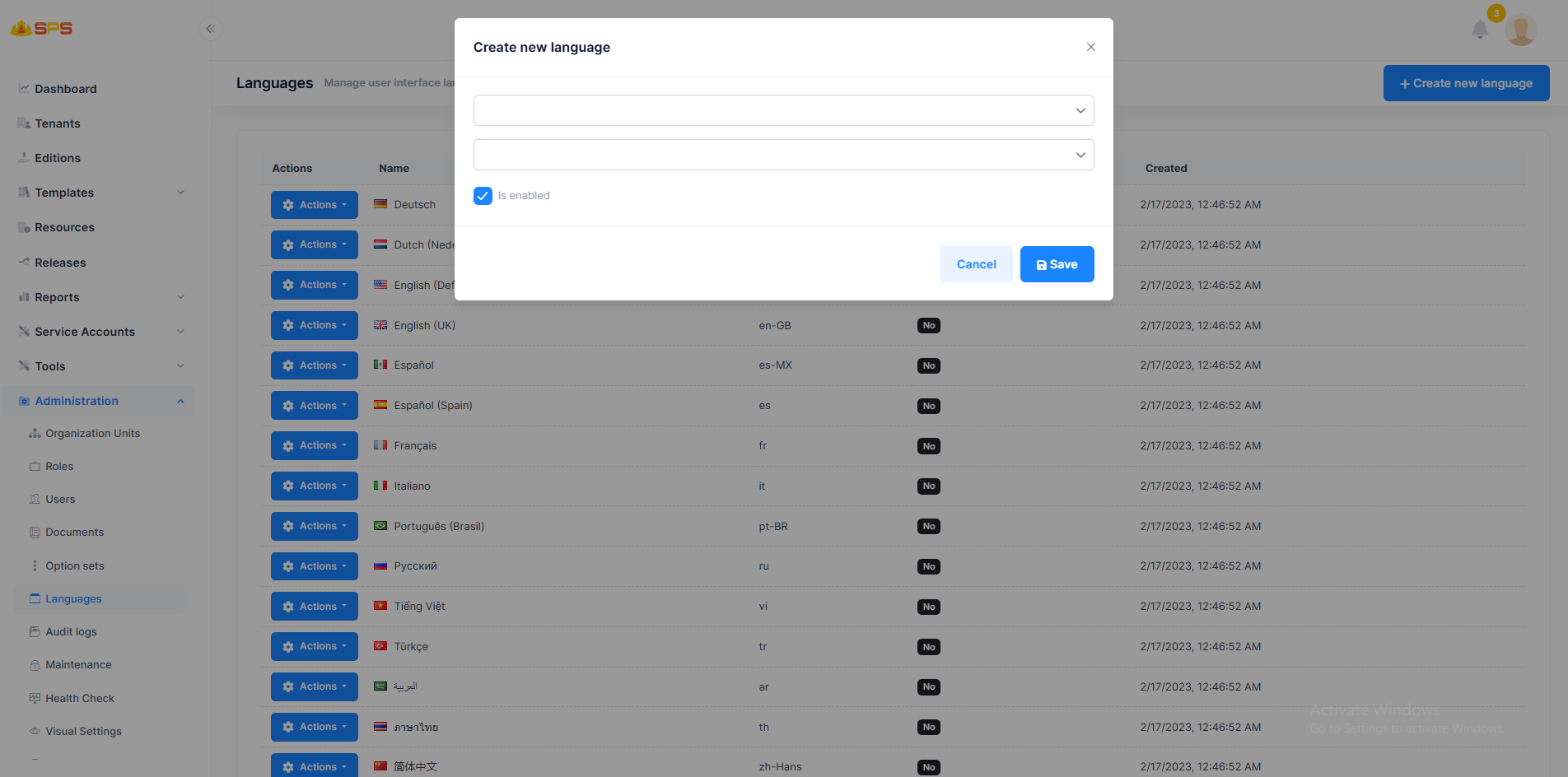
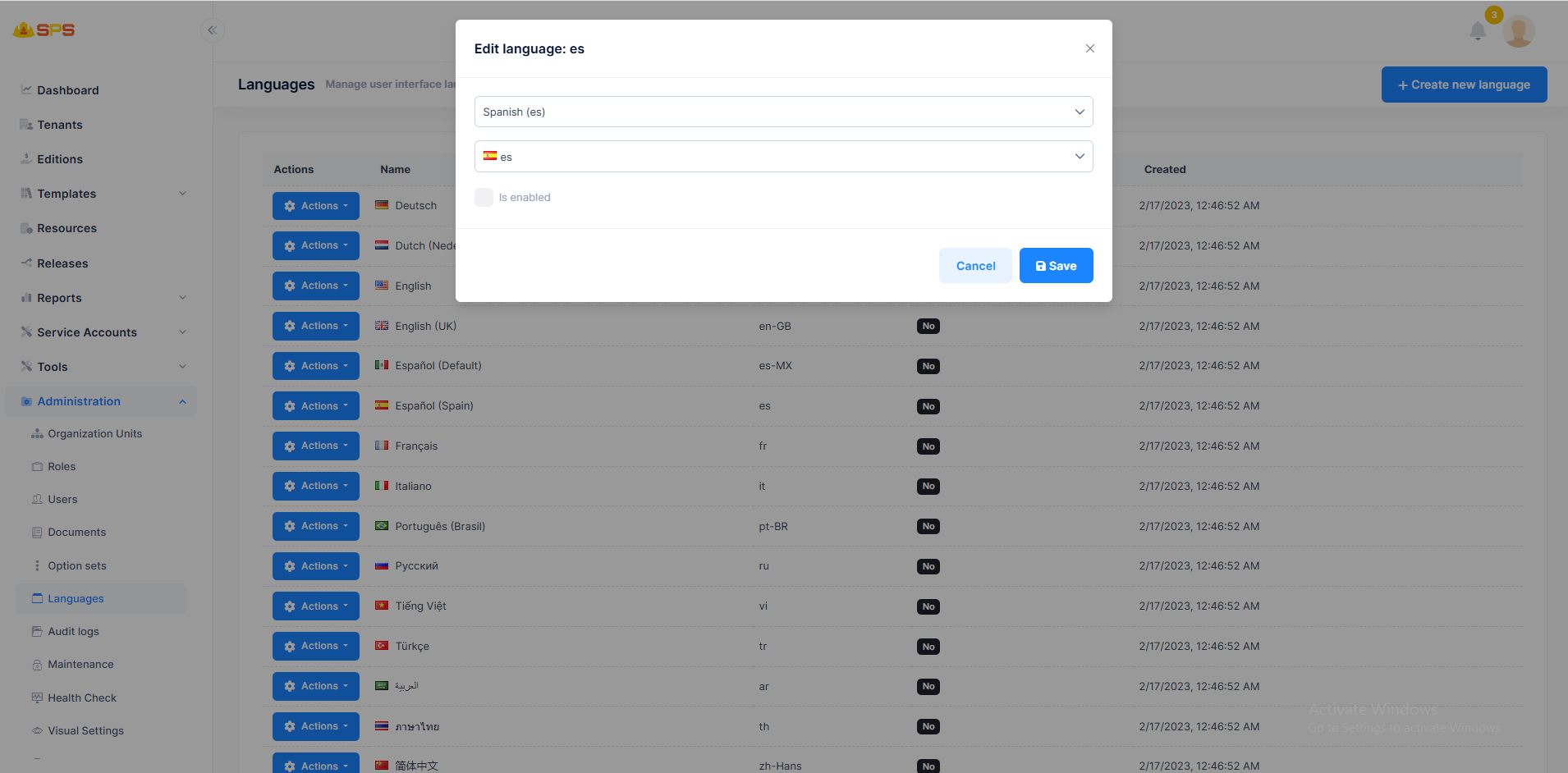
- Language Dropdowns: Selections for the specific language and culture code.
- Is enabled: A checkbox to determine whether this language should be active and available for users to select in the application.
3. Manage Localization Terms and Phrases
Administrators can fine-tune translations and localization keys directly through the UI:
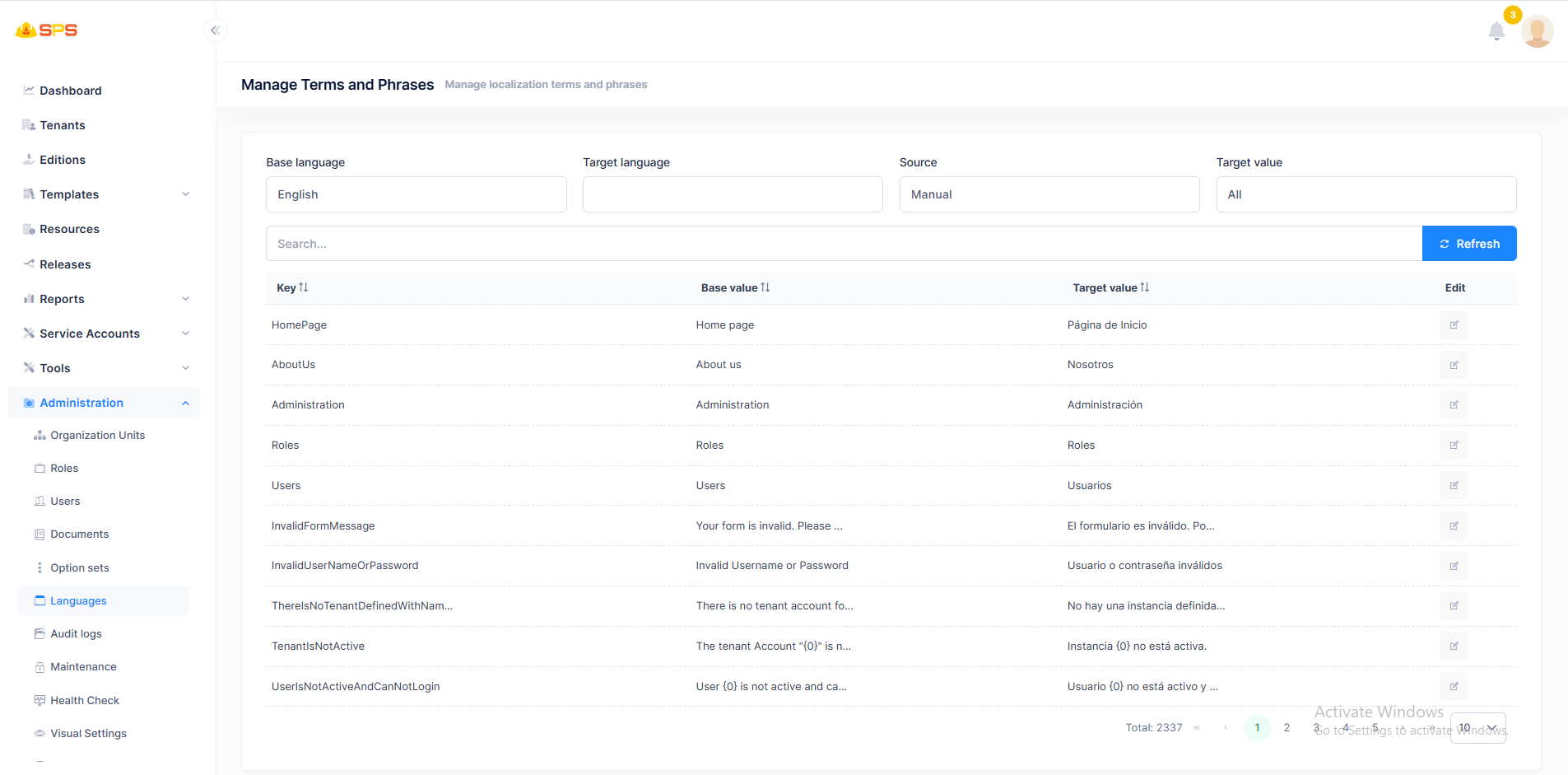
- Filters: Options to filter terms by
Base language,Target language,Source, andTarget value. - Search: A search bar to locate specific keys or phrases.
- Terms Table: Displays the
Key,Base value, andTarget value. Users can click the edit icon on any row to modify the translation for the target language.
Edit Text Dialog
When an administrator clicks the edit icon for a specific term, an Edit text dialog appears:
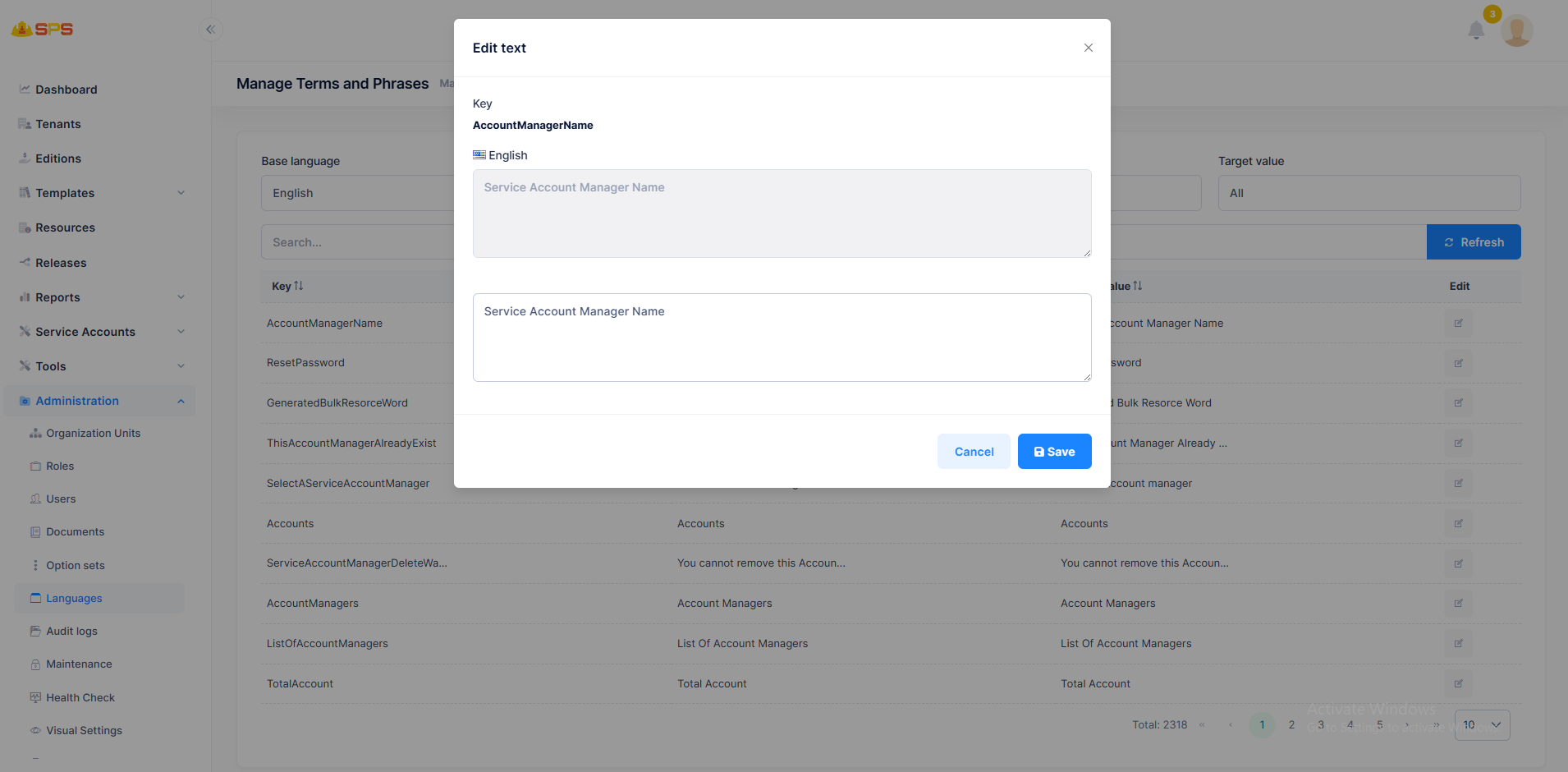
- Key: Displays the system identifier for the phrase (e.g.,
AccountManagerName). - Base language (English): Shows the text in the base language as a reference (read-only).
- Target value: A text area where the administrator can input or update the translation for the target language.
Developer Reference
Core Backend Components
- Entities: Driven by core localization entities (typically
LanguageandLanguageText) managing the supported languages and their dictionary entries. - Application Services: Services handling CRUD operations for languages, changing the default language, and dynamically updating or retrieving localization strings for the application frontend.