Roles Management
The Roles module allows administrators to define specific roles and assign permissions to them. This ensures that users have appropriate access to different areas and actions within the application based on their assigned roles.
SPS Customizations
Below are the specific workflows and functionalities built into the Roles module.
1. Roles Interface
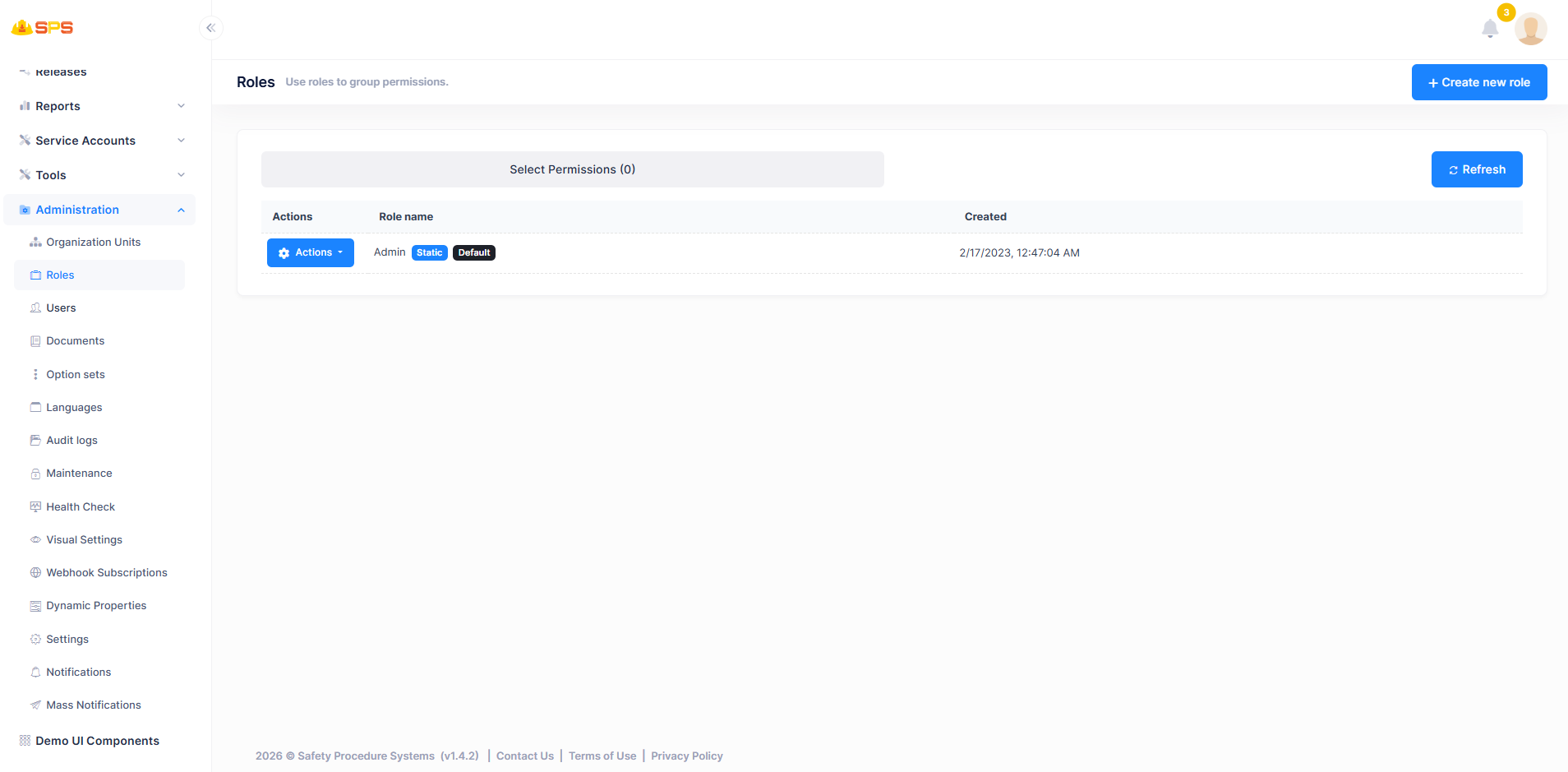
The primary view displays a list of all existing roles in the system:
- Roles List: A table displaying roles with details such as
Role nameandCreateddate. It also indicates if a role isStaticorDefault. - Actions Menu: Allows managing individual roles (e.g., Edit, Delete, or Manage Permissions).
- Create New Role: A primary action button (
+ Create new role) to add a new role to the system. - Select Permissions: A dropdown or filter mechanism to inspect roles based on selected permissions.
2. Creating a New Role
When creating or editing a role, administrators use a dialog divided into tabs:
Role Name Configuration
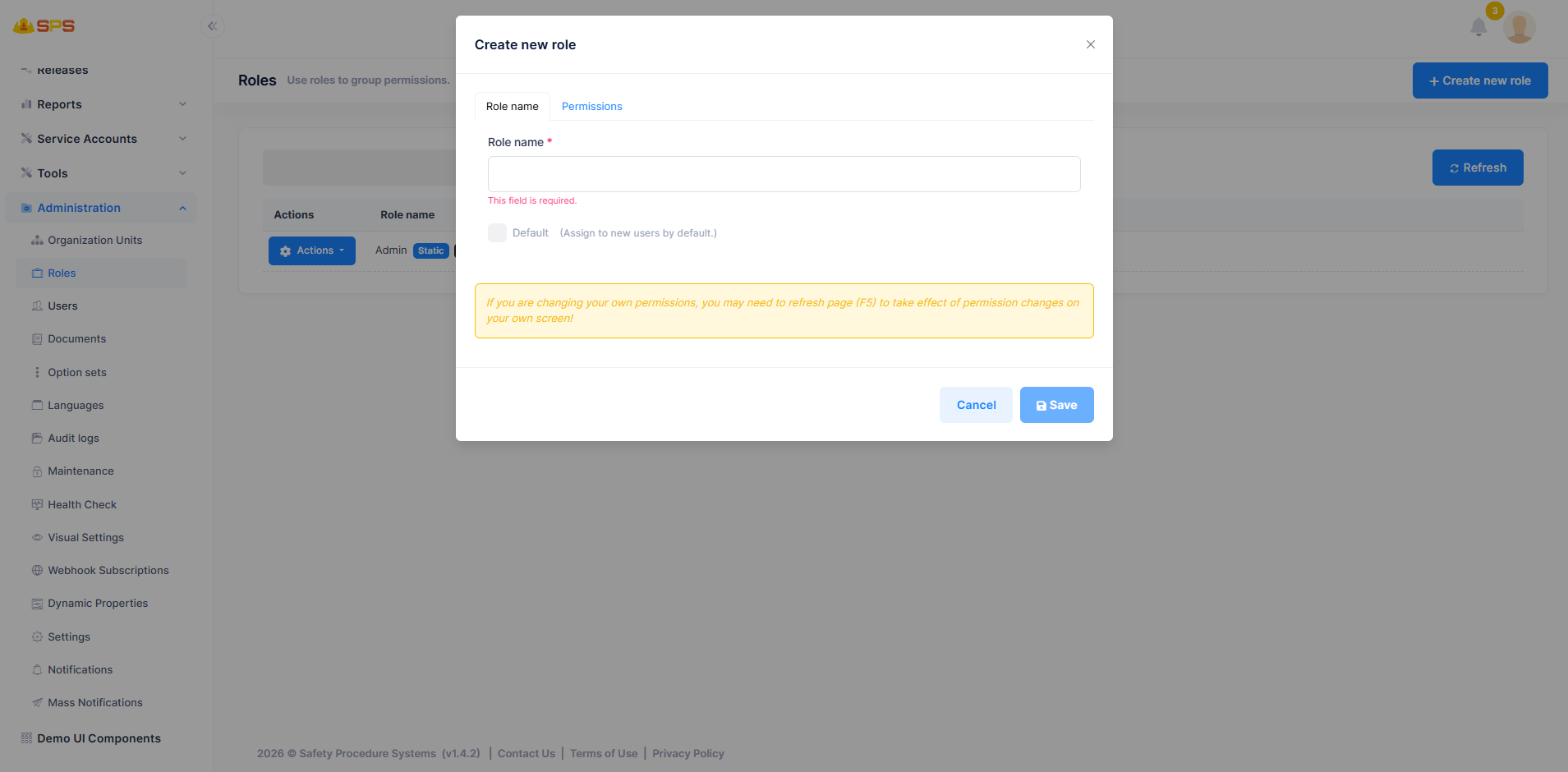
- Role name: A mandatory field to define the unique name of the role.
- Default: A checkbox to specify if this role should be assigned to new users by default.
Permissions Configuration
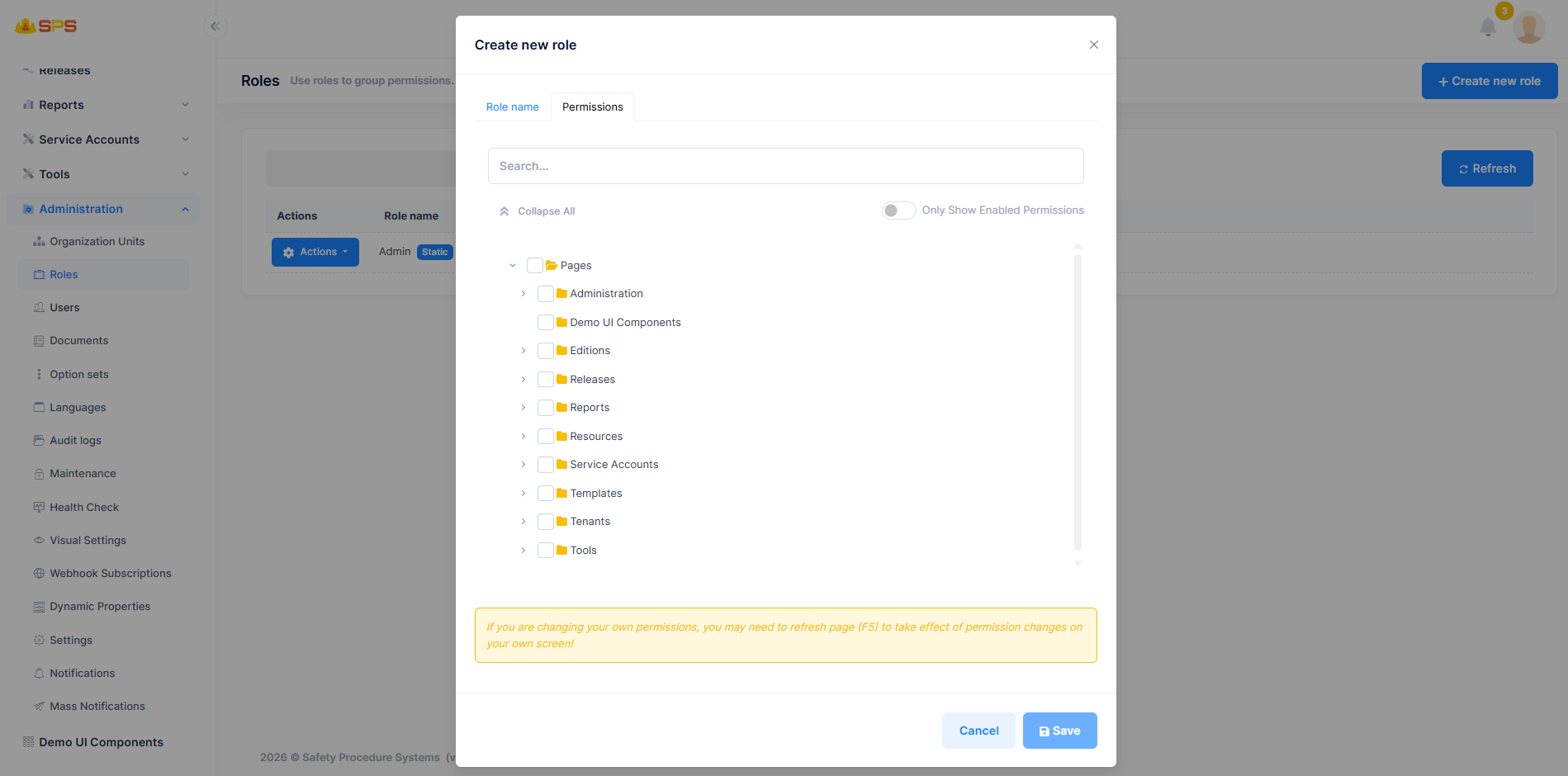
- Permissions Tree: A hierarchical list of pages and features (e.g., Administration, Demo UI Components, Tenants). Administrators can select specific checkboxes to grant granular access to the role.
- Search: A search bar to quickly find specific permissions in the tree.
- Controls: Options to "Collapse All" or "Only Show Enabled Permissions" for easier management of large permission sets.
Developer Reference
Core Backend Components
- Entities: Driven by a core role entity (typically
RoleorAppRole) managing the role definition and its properties. - Application Services: Services handling CRUD operations for roles and managing the mapping of permissions to roles for robust Role-Based Access Control (RBAC).