Users Management
The Users module provides a centralized interface for managing all user accounts within the application. Administrators can view user details, manage roles, and control overall access to the system.
SPS Customizations
Below are the specific workflows and functionalities built into the Users module.
1. Users Interface
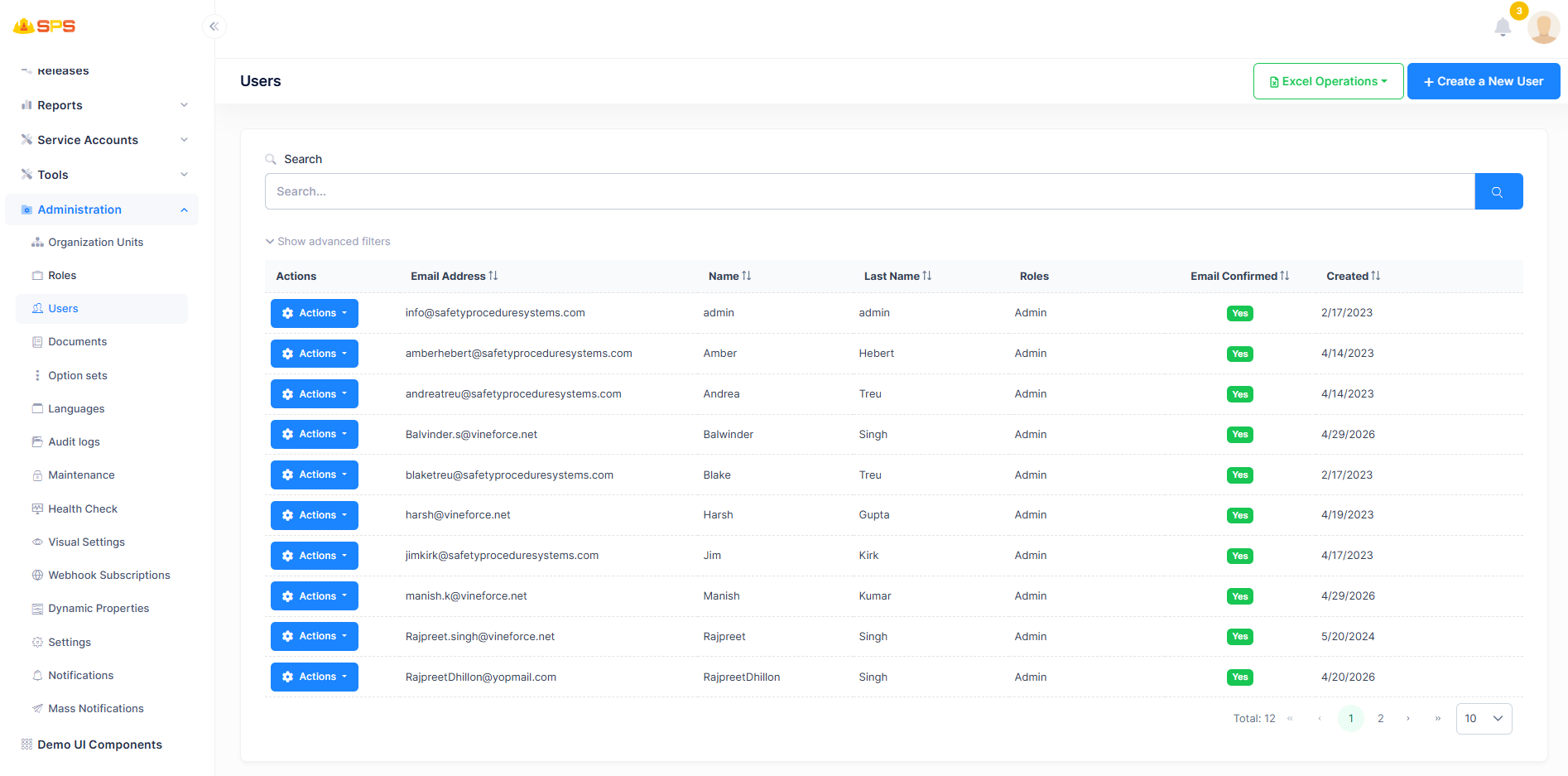
The primary view provides a comprehensive list of users and tools for their management:
- Users List: A data table displaying key user information, including:
Email Address: The primary identifier and contact for the user.NameandLast Name: The user's personal details.Roles: The assigned roles (e.g., Admin) dictating their system permissions.Email Confirmed: A visual indicator (Yes/No tag) showing if the user has verified their email.Created: The date and time the user account was created.
- Actions Menu: A dropdown button for each user row allowing administrators to perform specific actions such as editing the user's profile, managing their permissions, unlocking their account, or deleting them.
- Search and Filters:
- A primary search bar to quickly find users by name, email, or other details.
- An expandable
Show advanced filterssection for more specific and complex queries.
- Bulk Actions: Options like
Excel Operationsfor exporting user data to an Excel file or importing users from a file. - Create a New User: A primary action button (
+ Create a New User) to manually add a new user to the system.
2. Creating a New User
When adding a new user manually via the + Create a New User button, administrators are presented with a dialog containing three tabs:
User Information
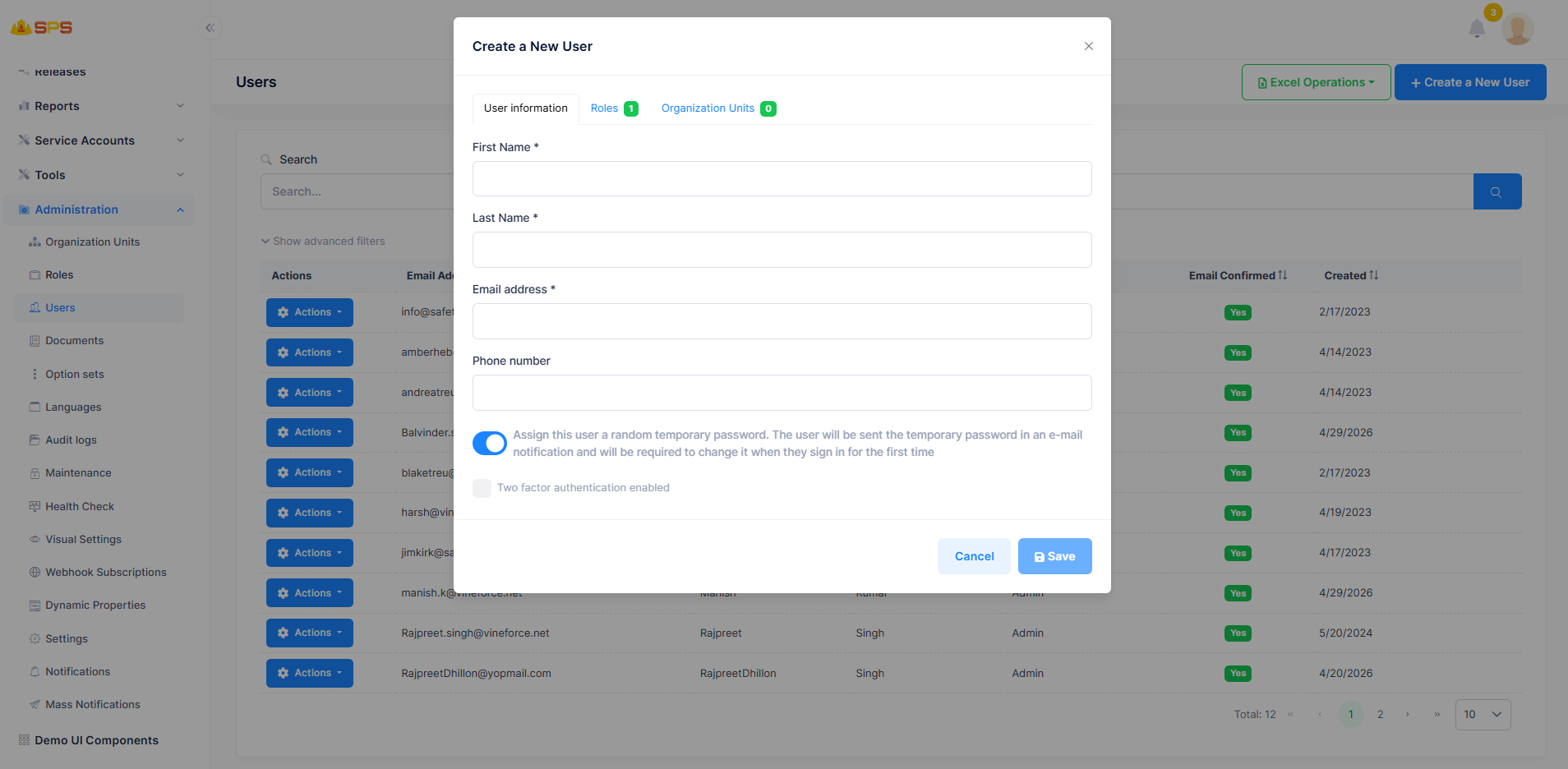
- First Name & Last Name: Mandatory fields for the user's name.
- Email address: A mandatory field for the user's login and contact email.
- Phone number: An optional field for user contact.
- Temporary Password: A toggle to assign a random temporary password which will be emailed to the user, requiring them to change it upon first login.
- Two factor authentication: Option to enforce or enable 2FA for the new account.
Roles Configuration
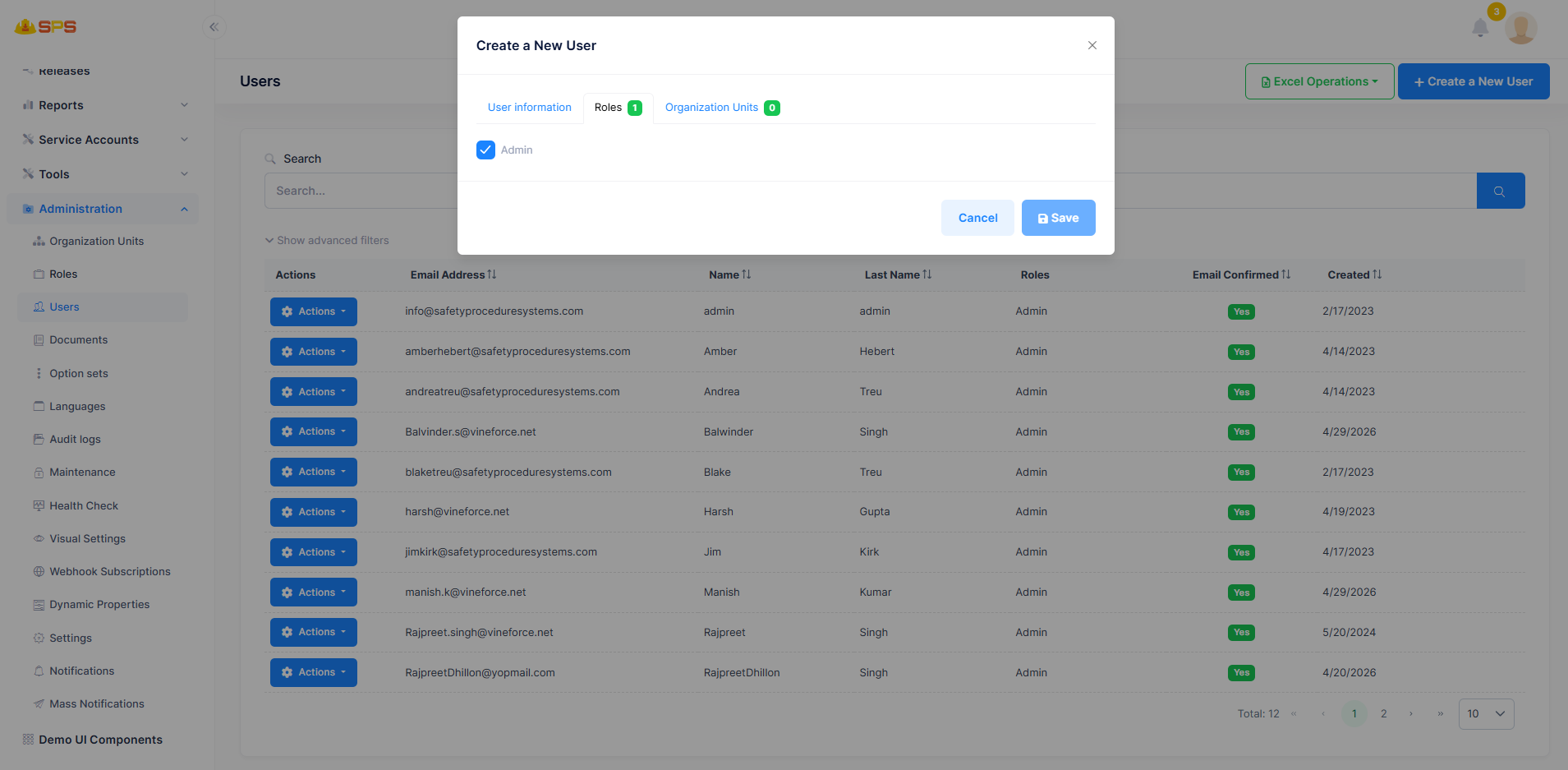
- Role Selection: A list of available roles (e.g., Admin) with checkboxes to directly assign permissions at the time of user creation.
Organization Units Configuration
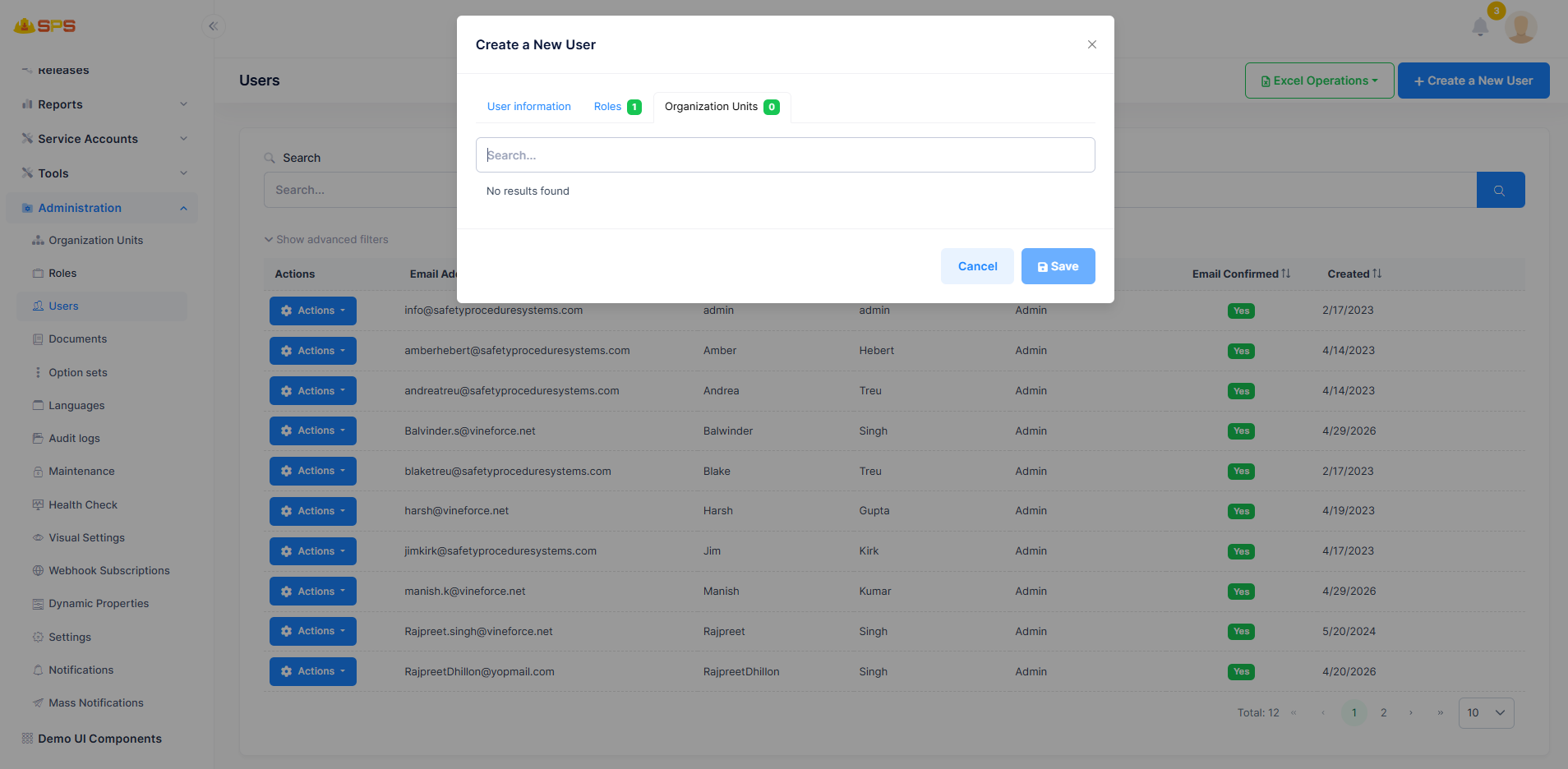
- Organization Units Selection: An interface with a search bar to assign the new user to specific branches or departments within the organizational tree.
Developer Reference
Core Backend Components
- Entities: Driven by a core user entity (typically
UserorAppUser) storing identity information, credentials, and profile details. - Application Services: Services managing user lifecycle operations, authentication integrations, authorization checks, and role assignment logic.